# 1.- Setting
ℹ️ This module is only available to users with manager and administrator role.

# 1.1- Modules
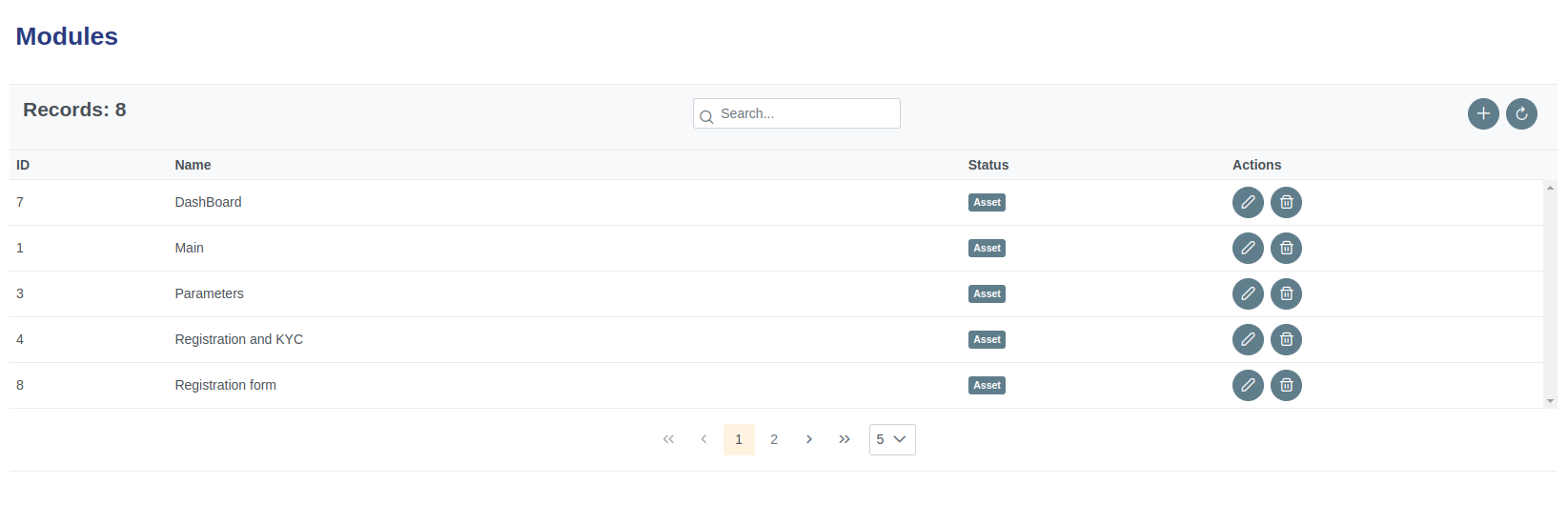
Clicking on modules presents the view that allows the administrator to manage system modules.
# 1.1.1- Components
| Icon | Label | Type | Description |
|---|---|---|---|
| ➖ | Records | Table | Show number of modules. |
| ➖ | ID | Table field | Show ID of module. |
| ➖ | Name | Table field | Show Name of module. |
| ➖ | Status | Table field | Show status of module. |
| ➖ | Actions | Table field | Show actions button. |
 | New Button | Command button | Creates a new module. |
 | Refresh Button | Command button | Refreshes the table. |
 | Edit Button | Command button | Edit module. |
 | Delete Button | Command button | Delete module. |
# 1.1.2- Add Module form
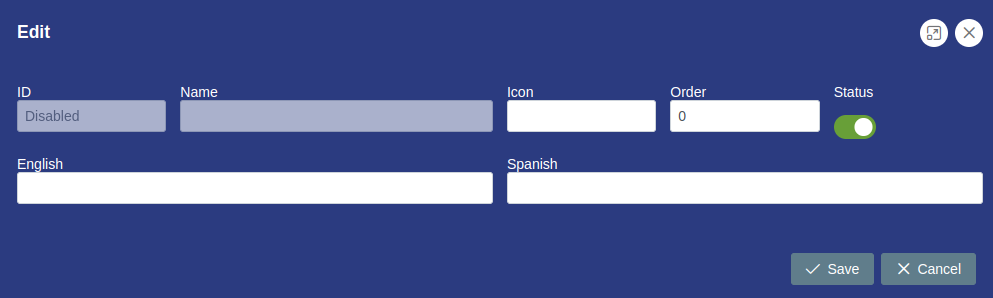
Clicking on modules presents the view that allows the administrator to manage system modules.
|
# 1.1.3- Components
| Icon | Label | Type | Description |
|---|---|---|---|
 | ➖ | Command button | Enlargewindow. |
 | ➖ | Command button | Close window. |
| ➖ | ID | String | Disable. |
| ➖ | Name | String | Disable. |
| ➖ | Icon | String | Incon module. |
| ➖ | Order | Number | Position of the module in view window. |
 | Status | Boolean button | Turn module on or off. |
| ➖ | English | String | Name of the module in English. |
| ➖ | Spanish | String | Name of the module in Spanish. |
 | Save | Command button | Save button. |
 | Refresh Button | Command button | Cancel button. |
# 1.1.4- Step by Step Add Module
✅ 1. Click the command button to add module.
✅ 2. Complete the form fields with the requested data.
✅ 3. Click the save or cancel command button to hang from the case.
✅ 4. Verify the executed action.
# 1.1.5- Edit Module
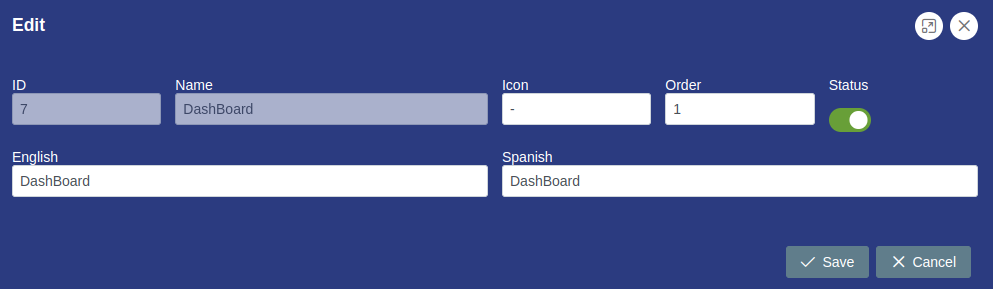
Clicking on modules presents the view that allows the administrator to manage system modules.
|
# 1.1.6- Step by Step Edit Module
✅ 1. Click the command button to edit module.
✅ 2. Edit the required field or fields.
✅ 3. Click the save or cancel command button to hang from the case.
✅ 4. Verify the executed action.
# 1.1.7- Step by Step Delete Module
✅ 1. Click the command button to delete module.
✅ 2. Verify the executed action.
# 1.2- Pages
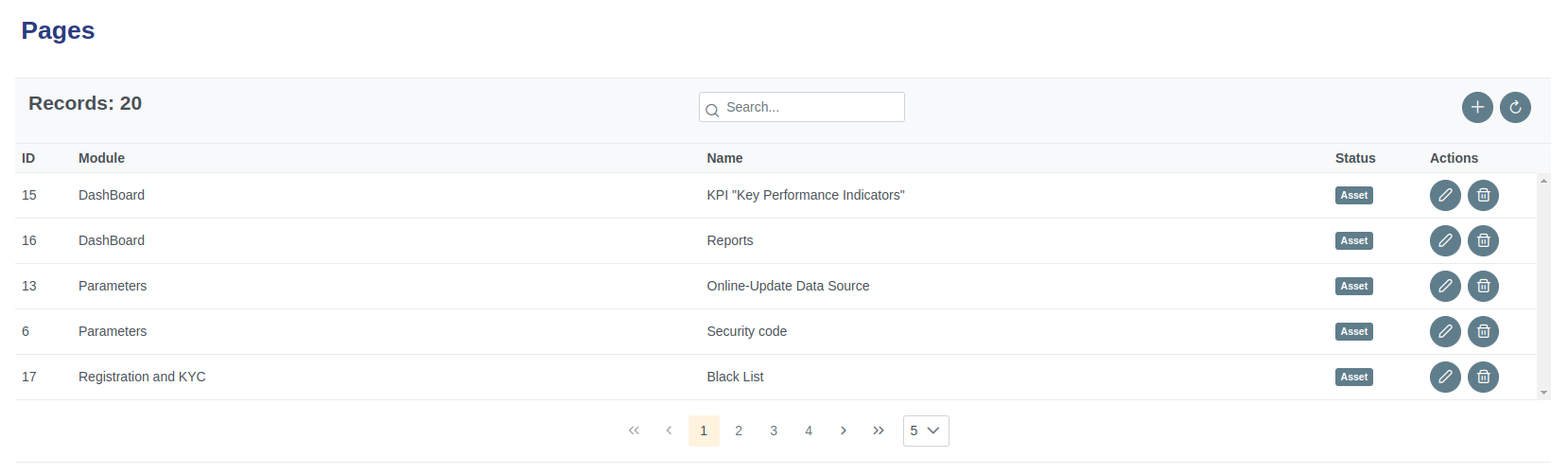
Clicking on page presents the view that allows the administrator to manage the modules of the system.
# 1.2.1- Components
| Icon | Label | Type | Description |
|---|---|---|---|
| ➖ | Records | Table | Show number of page. |
| ➖ | ID | Table field | Show ID of page. |
| ➖ | Module | Table field | Show module of page. |
| ➖ | Name | Table field | Show Name of page. |
| ➖ | Status | Table field | Show status of page. |
| ➖ | Actions | Table field | Show actions button. |
| New Button | Command button | Creates a new page. |
| Refresh Button | Command button | Refreshes the table. |
| Edit Button | Command button | Edit page. |
| Delete Button | Command button | Delete page. |
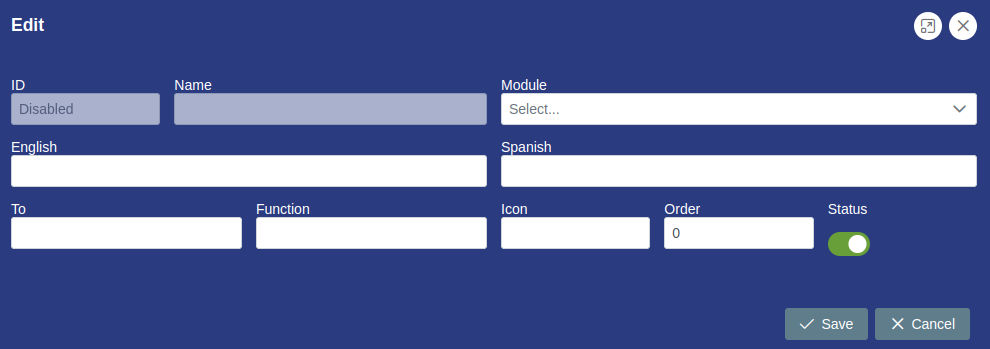
# 1.2.2- Add Pages form
Clicking on modules presents the view that allows the administrator to manage system modules.
 |
|---|
# 1.2.3- Components
| Icon | Label | Type | Description |
|---|---|---|---|
| ➖ | Command button | Enlargewindow. |
| ➖ | Command button | Close window. |
| ➖ | ID | String | Disable. |
| ➖ | Name | String | Disable. |
| ➖ | Module | String | Selection of the module to assign the page. |
| ➖ | English | String | Name of the page in English. |
| ➖ | Spanish | String | Name of the page in Spanish. |
| ➖ | To | String | Reference name of the page. |
| ➖ | Funtion | String | Reference name funtion of the page. |
| ➖ | Icon | String | Incon page. |
| ➖ | Order | Number | Position of the page in view window. |
| Status | Boolean button | Turn page on or off. |
| Save | Command button | Save button. |
| Refresh Button | Command button | Cancel button. |
# 1.2.4- Step by Step Add page
✅ 1. Click the command button to add page.
✅ 2. Complete the form fields with the requested data.
✅ 3. Click the save or cancel command button to hang from the case.
✅ 4. Verify the executed action.
# 1.2.5- Edit Page
Clicking on modules presents the view that allows the administrator to manage system modules.
|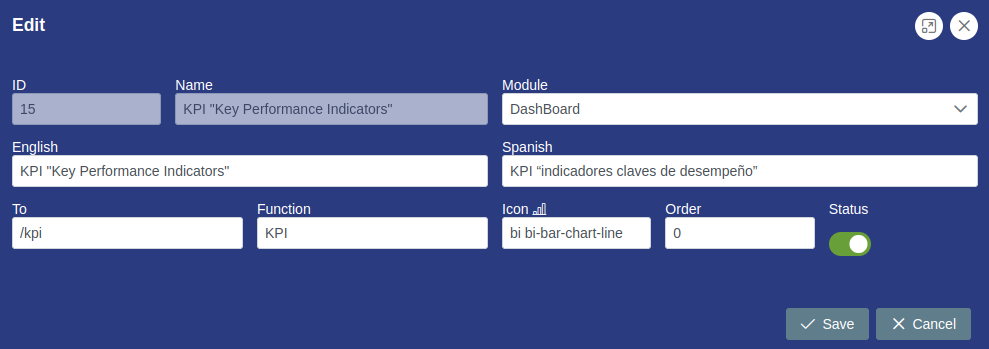
# 1.2.6- Step by Step Edit Page
✅ 1. Click the command button to edit page.
✅ 2. Edit the required field or fields.
✅ 3. Click the save or cancel command button to hang from the case.
✅ 4. Verify the executed action.
# 1.2.7- Step by Step delete Page
✅ 1. Click the command button to delete page.
✅ 2. Verify the executed action.
# 1.3- Roles Module
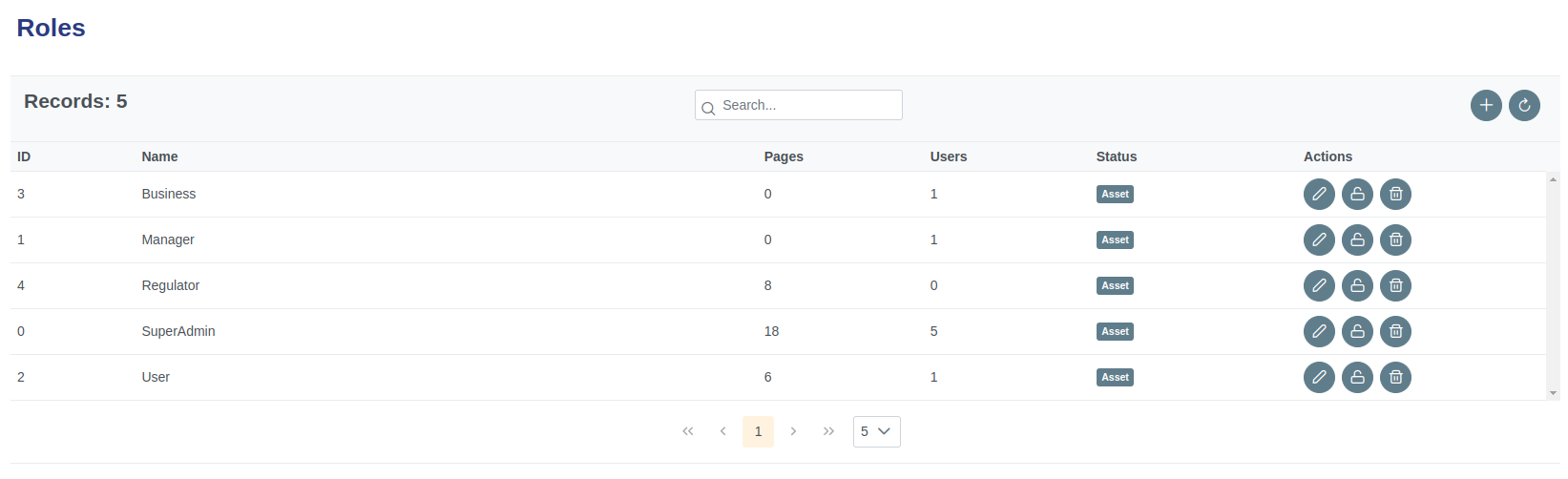
Clicking on roles presents the view that allows the administrator to manage the roles and permissions of system users.
# 1.3.1- Components
| Icon | Label | Type | Description |
|---|---|---|---|
| ➖ | Records | Table | Show number of roles. |
| ➖ | ID | Table field | Show ID of role. |
| ➖ | Name | Table field | Show Name of role. |
| ➖ | Pages | Table field | Show Assigned pages. |
| ➖ | User | Table field | Show Assigned user. |
| ➖ | Status | Table field | Show status of role. |
| ➖ | Actions | Table field | Show actions button. |
| New Button | Command button | Creates a new role. |
| Refresh Button | Command button | Refreshes the table. |
| Edit Button | Command button | Assign pages to the role. |
 | Permissions Button | Command button | Edit permissions to the role |
| Delete Button | Command button | Delete the role. |
# 1.3.2- Add Role form
Clicking on modules presents the view that allows the administrator to manage system modules.
|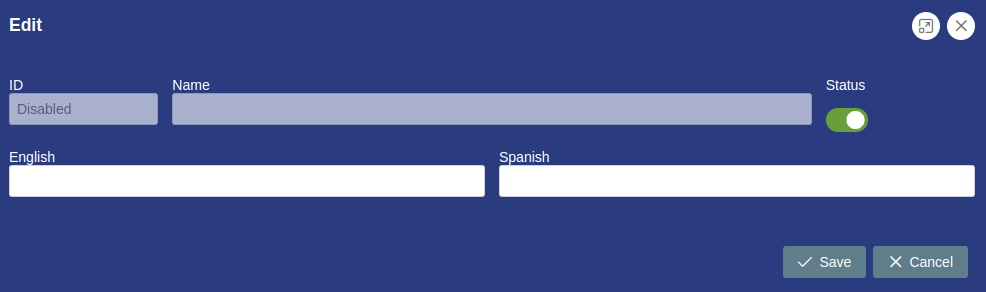
# 1.3.3- Components
| Icon | Label | Type | Description |
|---|---|---|---|
| ➖ | Command button | Enlargewindow. |
| ➖ | Command button | Close window. |
| ➖ | ID | String | Disable. |
| ➖ | Name | String | Disable. |
| ➖ | Icon | String | Incon module. |
| ➖ | Order | Number | Position of the module in view window. |
| Status | Boolean button | Turn module on or off. |
| ➖ | English | String | Name of the module in English. |
| ➖ | Spanish | String | Name of the module in Spanish. |
| Save | Command button | Save button. |
| Refresh Button | Command button | Cancel button. |
# 1.3.4- Step by Step Add role
✅ 1. Click the command button to add role.
✅ 2. Complete the form fields with the requested data.
✅ 3. Click the save or cancel command button to hang from the case.
✅ 4. Verify the executed action.
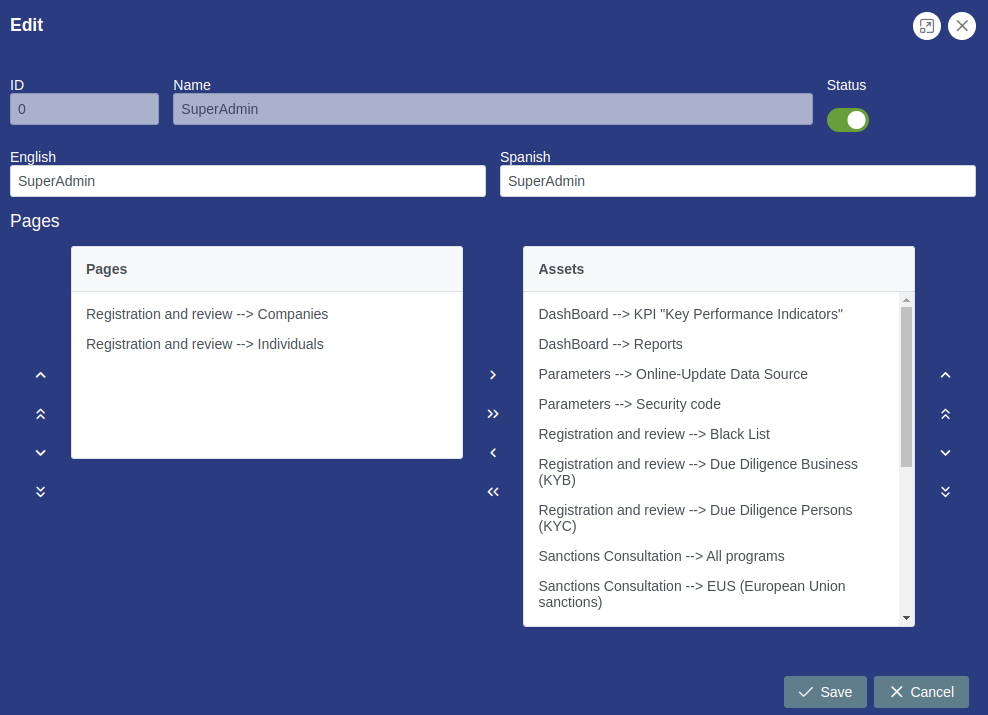
# 1.3.5- Edit Role
Clicking on modules presents the view that allows the administrator to manage system modules.
|
# 1.3.6- Components
| Icon | Label | Type | Description |
|---|---|---|---|
| ➖ | Command button | Enlargewindow. |
| ➖ | Command button | Close window. |
| ➖ | ID | String | Disable. |
| ➖ | Name | String | Disable. |
| ➖ | Icon | String | Incon module. |
| ➖ | Order | Number | Position of the module in view window. |
| Status | Boolean button | Turn module on or off. |
| ➖ | English | String | Name of the module in English. |
| ➖ | Spanish | String | Name of the module in Spanish. |
| Save | Command button | Save button. |
| Refresh Button | Command button | Cancel button. |
# 1.3.7- Step by Step Edit Role
✅ 1. Click the command button to edit role.
✅ 2. Edit the required field or fields or assign pages to the role.
✅ 3.Use the command arrows to scroll or assign pages.
✅ 4. Click the save or cancel command button to hang from the case.
✅ 5. Verify the executed action.
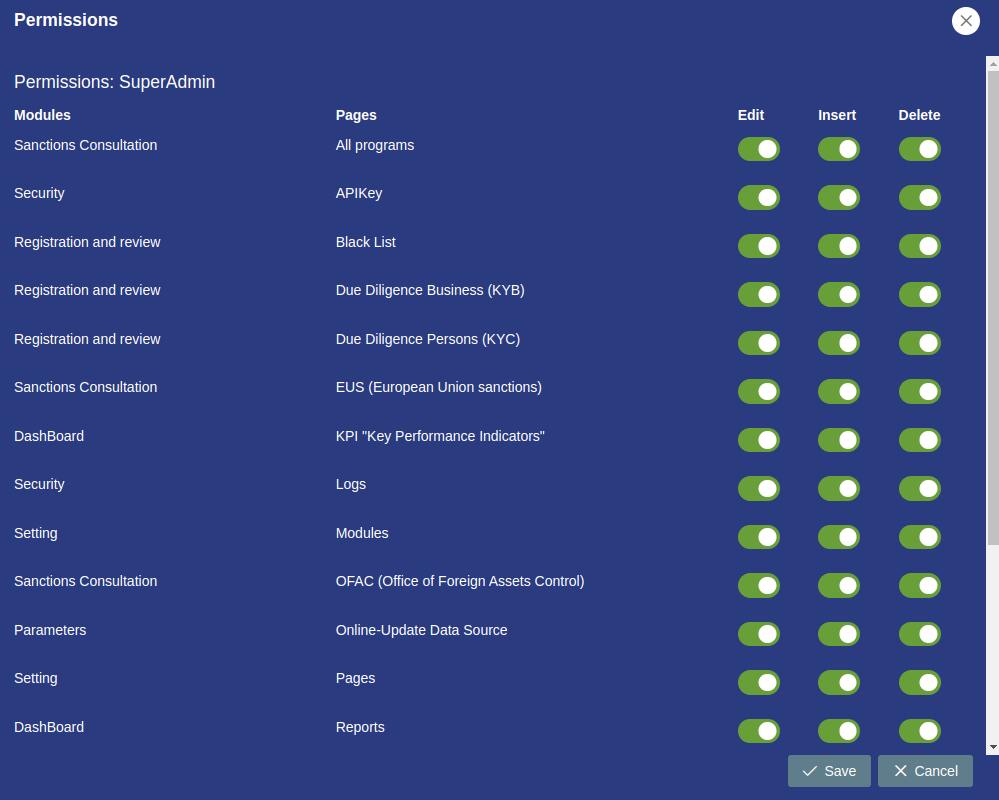
# 1.3.8- Activate or Edit permission
Clicking on modules presents the view that allows the administrator to manage system modules.
|
# 1.3.9- Components
| Icon | Label | Type | Description |
|---|---|---|---|
| ➖ | Command button | Enlargewindow. |
| ➖ | Command button | Close window. |
| ➖ | ID | String | Disable. |
| ➖ | Name | String | Disable. |
| ➖ | Icon | String | Incon module. |
| ➖ | Order | Number | Position of the module in view window. |
| Status | Boolean button | Turn module on or off. |
| ➖ | English | String | Name of the module in English. |
| ➖ | Spanish | String | Name of the module in Spanish. |
| Save | Command button | Save button. |
| Refresh Button | Command button | Cancel button. |
# 1.3.10- Step by Step Activate or Edit permission
✅ 1. Click the edit permissions button.
✅ 2. Enable proper permissions using Boolean controls.
✅ 3. Click the save or cancel command button to hang from the case.
✅ 4. Verify the executed action.
# 1.3.11- Step by Step delete Role
✅ 1. Click the command button to delete role.
✅ 2. Verify the executed action.